
How to Get Live Web Data into Google Sheets in 2026 (Without Leaving Your Spreadsheet)

Spreadsheets are still one of the most popular tools for working with data, and one question keeps coming up:
How do you pull live web data into Google Sheets without writing code or leaving your spreadsheet?
Today, it’s easier than ever. With tools like Import.io, you can extract structured data from almost any website and send it directly into Google Sheets or Excel, no plugins, no scripts, and no technical setup required. This guide shows you a simple, reliable way to turn messy web pages into clean, automatically updating datasets in minutes.
Pulling Live Web Data into Google Sheets
In this example, we’ll use Import.io to extract data from a webpage and automatically load it into Google Sheets as a clean table.
What you’ll need
- An Import.io account
- A Google Sheet
- A URL you want to extract data from (for example, a product listing page, directory, or search results page)
That’s it, no plugins, no add-ons, and no scripts required.
Step 1: Extract the data with Import.io
Start by opening Import.io and creating an extractor for the page you want to collect data from.
Using Import.io’s point-and-click interface, select the data you want (such as product names, prices, availability, or links). Import.io automatically turns the page into a structured table.
Once the extractor runs, you’ll have a clean dataset that updates whenever the extractor runs again.
Step 2: Open your Google Sheet
Next, open a new or existing Google Sheet where you want the data to live.
Decide which cell you want the data to start in (usually cell A1).
Step 3: Pull the data into Google Sheets
Import.io provides a simple way to pull extractor results directly into Google Sheets using a standard Sheets formula.
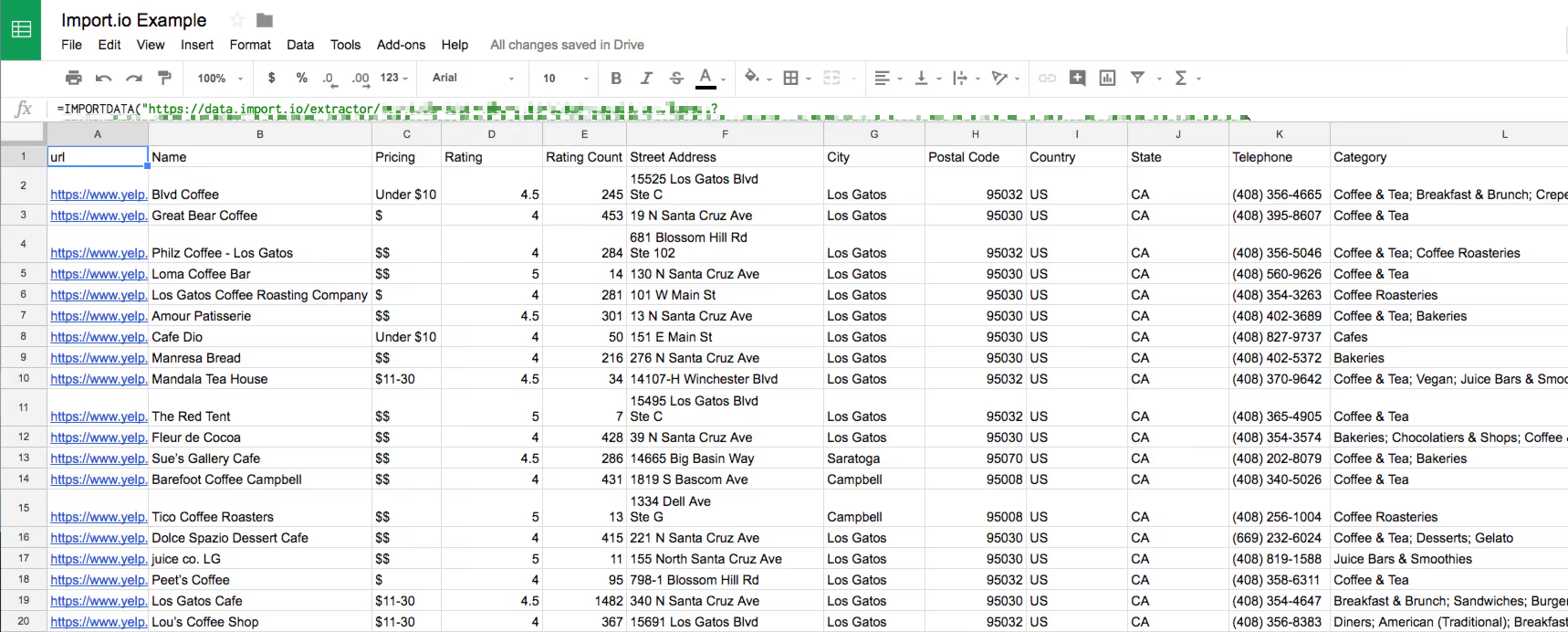
Paste the Import.io data URL into the IMPORTDATA function, and Google Sheets will load the latest extractor run as a table.
Within seconds, your spreadsheet will populate with live web data - rows and columns included.
When the extractor runs again, your sheet updates automatically.
Send structured web data straight to a spreadsheet on a schedule. Try Import.io free for 30 days.
Step 4: Change the source URL (optional)
Want to track a different page?
Simply update the URL used by your Import.io extractor, rerun it, and your Google Sheet will refresh with the new data, no need to rebuild your spreadsheet.
What Can You Do with Live Web Data in Sheets?
Once your web data is in Google Sheets, you can use it just like any other spreadsheet data.
Here are a few simple examples.
Track product prices
Pull product listings from a competitor’s website and track prices over time. Add basic formulas or charts to spot changes automatically.
Monitor product availability
Keep an eye on when products go in or out of stock by refreshing the data on a schedule.
Analyze trends
Sort, filter, and pivot live web data to understand trends in categories, pricing, or content updates.
Combine with internal data
Join web data with your own sales, inventory, or CRM data directly in Google Sheets.
Why This Works Better in 2026?
Instead of relying on fragile spreadsheet add-ons, this approach separates responsibilities:
- Import.io handles extracting and structuring messy web data
- Google Sheets handles analysis, formulas, and collaboration
That means fewer breakages, cleaner data, and less manual work.